
Steps for adding a Jira integration
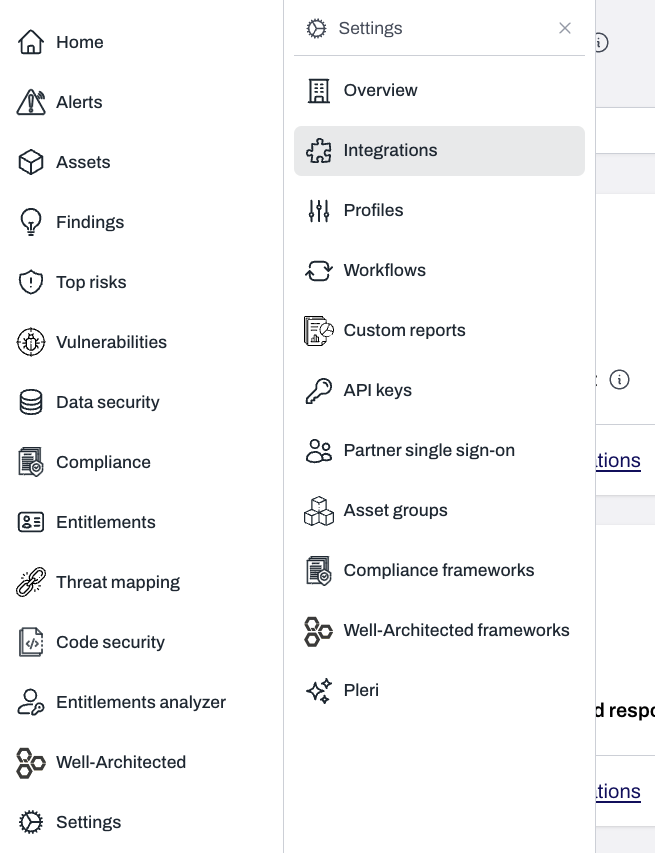
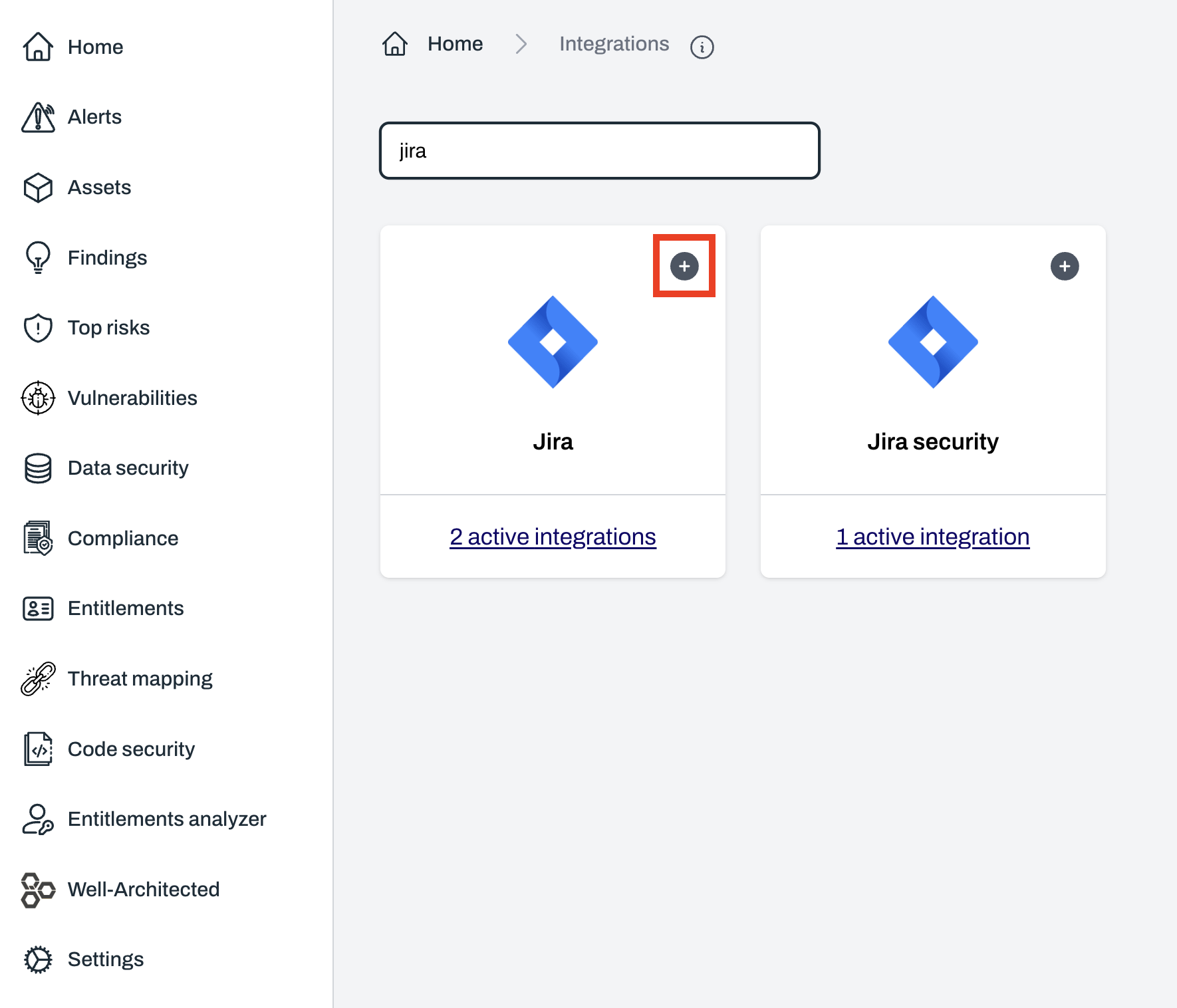
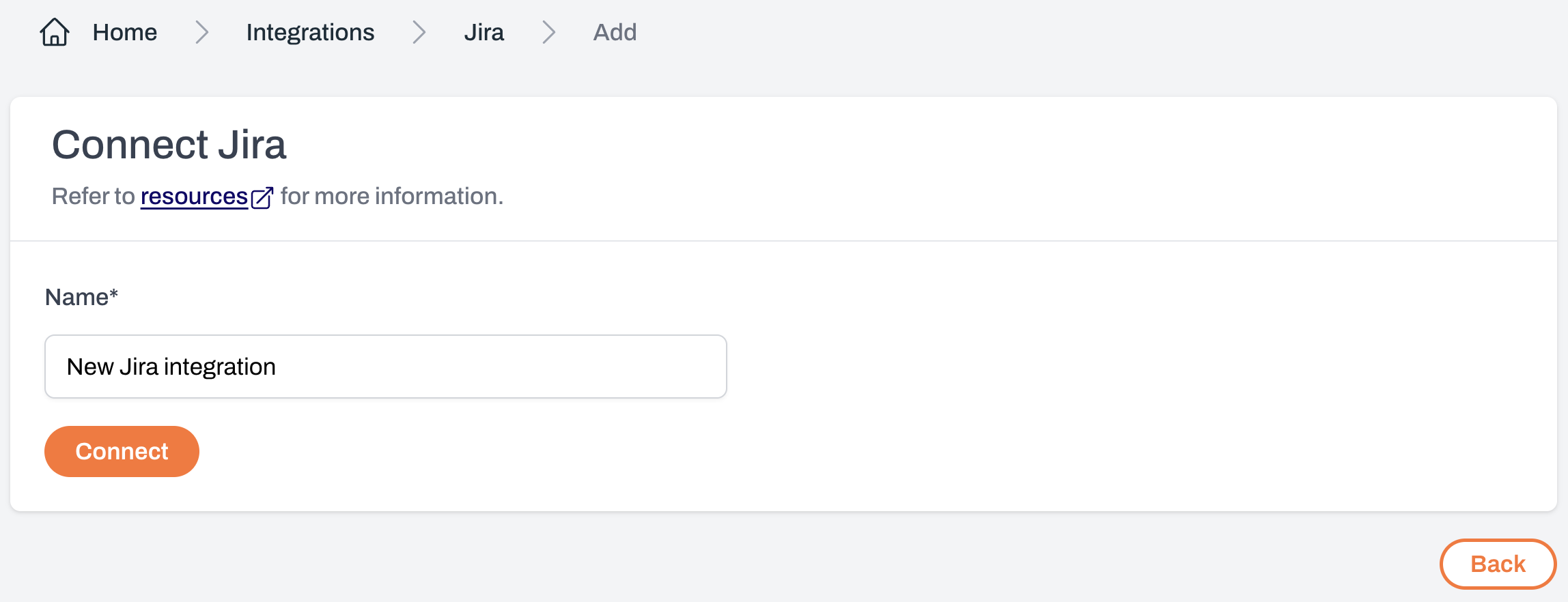
A Jira OAuth pop-up will appear
Review the requested permissions and click 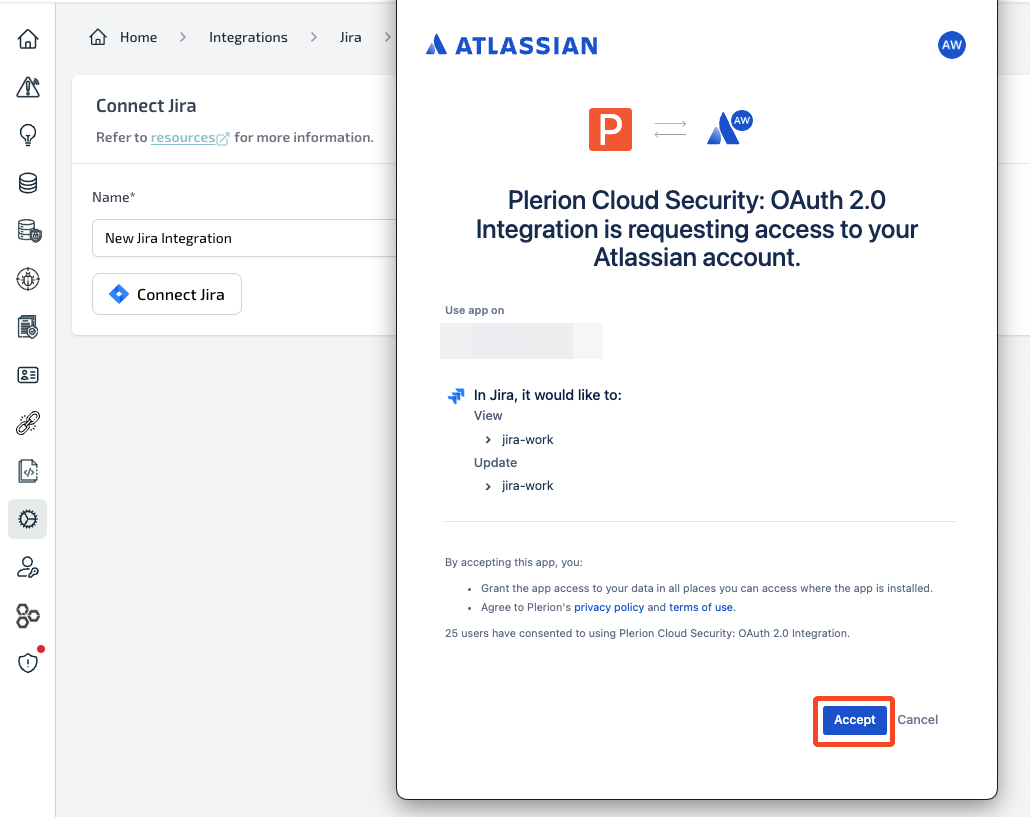
Accept to authorize the connection.Choose Jira instance (if applicable)
If you have access to multiple Jira instances, carefully select the correct one.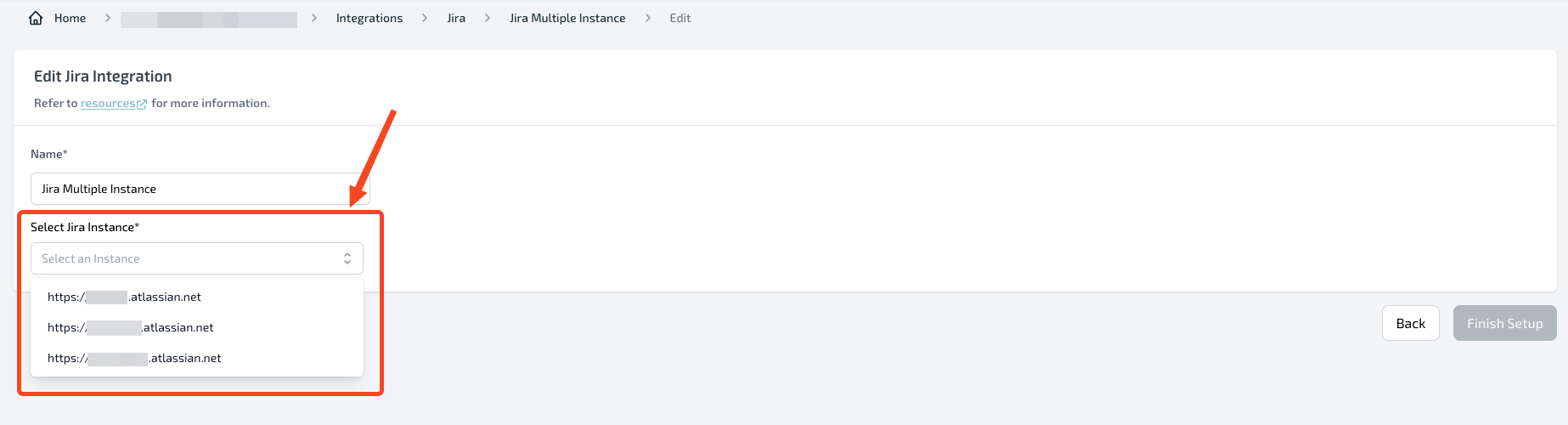
Test your Jira integration
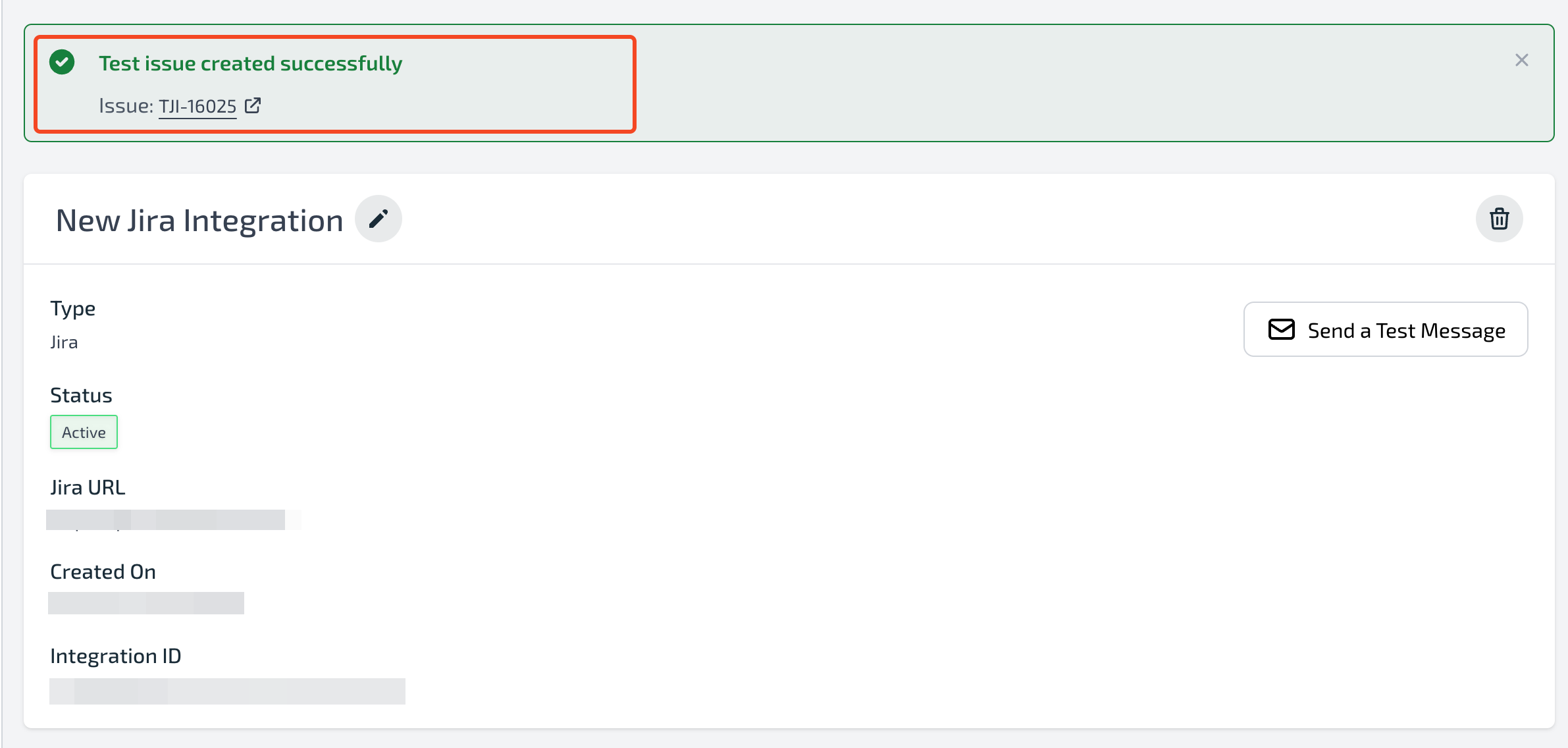
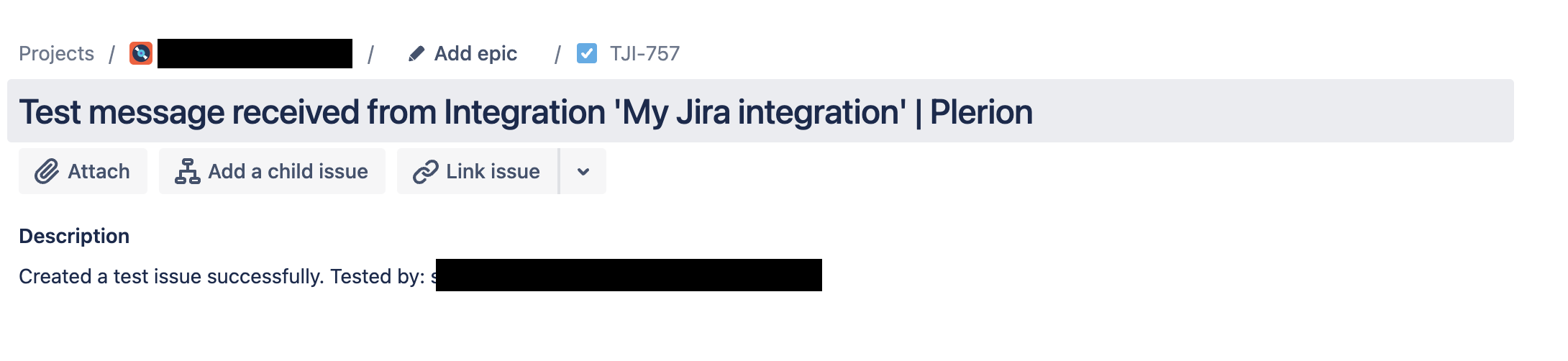
After adding Jira, you can send a test issue to confirm the setup.
Choose the Jira project and issue type for the test issue.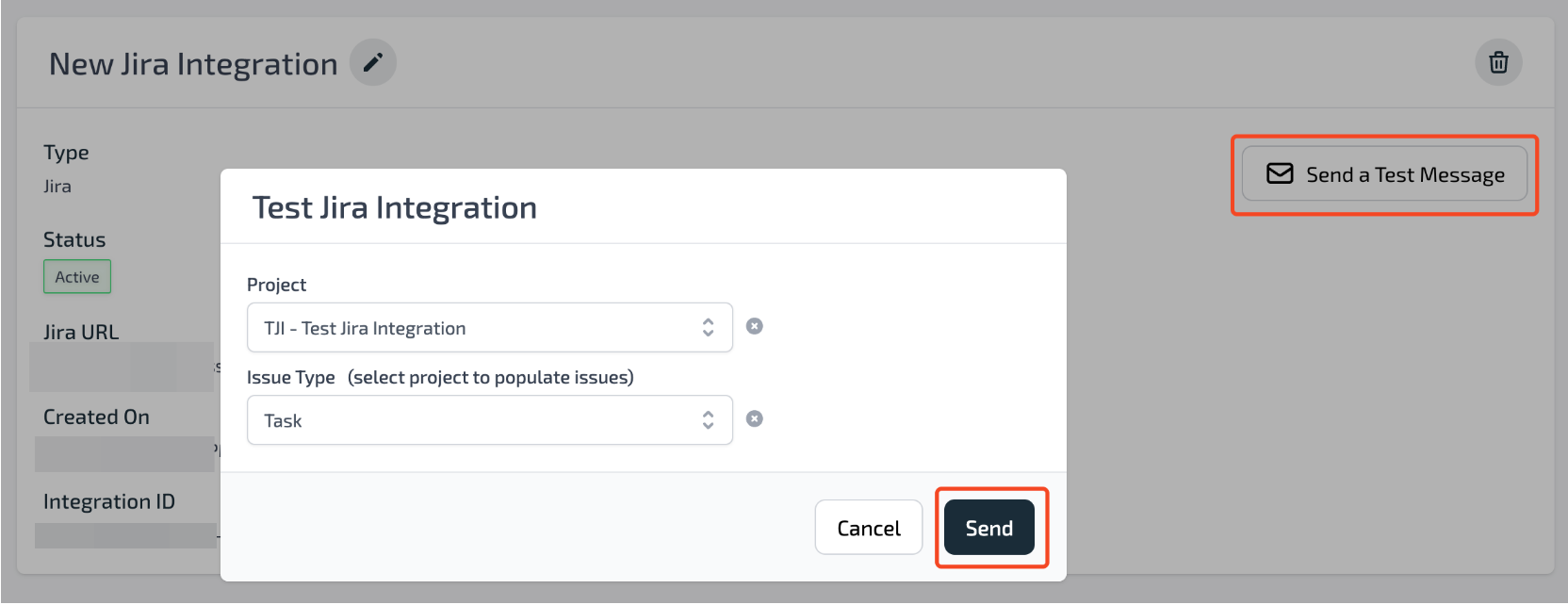
Choose the Jira project and issue type for the test issue.
Create a workflow on Plerion
After adding the Jira integration, you must create a workflow for any alerts to be sent to Jira.Add workflow conditions
- Under Conditions, you can build the workflow using any of the three available condition categories:
- Asset
- Findings
- Vulnerabilities
Add workflow actions
Under Actions, click
Add your Jira project, issue type and resolved status.
Add action and select your Jira integration.Add your Jira project, issue type and resolved status.